Once an employee's data has been entered and saved, I can view their full record but I can only edit the type, number, and expiry date of their ID document.
So please double-check the data when entering it to avoid any mistakes. If you spot an error, contact the administrator with supporting documentation at contact@passeportsecurite.nc to request a change.
When an employee is deleted, you can bring them back to the list by using the "Active employees" search filter and selecting "All employees" or "Deleted employees".
Once the employee appears in the list, click the three dots on the right of the employee's row and use the "Reactivate employee" option. Your employee will be back in your main list, so there is no need to redo the "Add an employee" step.
In the Employer Portal, select an employee then click the "Edit passport types and modules" button. A new page opens where you can select the complementary modules required.
Please note: these modules can only be assigned if the passport type is the Industry Passport, or if the Industry Passport module has been selected.
From the Employer Portal, select an employee then click "View record". From there, the "Replace photo" option offers two choices: either upload a photo from your computer or take one with your webcam.
An uploaded photo must be in JPEG or JPG format and 2 MB or smaller.
Since November 2022, two passport types have been available: the Industry Passport (the original) and the Construction Passport.
To choose the right type, you need to know where the selected employee will be working.
If they will be working on an industrial site (KNS, SLN or PRNC), even if their work is construction-related, they must hold the Industry Passport along with the complementary modules linked to the industrial site. If they will be working on construction sites outside industrial premises, they must hold the Construction Passport.
By default, any employee already registered in an employer account before 2 November 2022 holds an Industry-type NC Safety Passport.
From the Employer Portal, select an employee then click the "Edit passport types and modules" button. A new table appears with Passport Type No. 1 and No. 2.
No. 1 is the NC Safety Passport that the employee will follow first, in full.
No. 2 is the second passport selected and only includes the complementary videos that are not already covered by passport No. 1.
Once passport No. 1 has been started, the employer can no longer change the priority order until the next renewal.
From the Employer Portal, click your name in the bottom left then "My profile". The "menu" button gives you access to your profile and to the commitment charter you signed as an employer.
By clicking on the profile, you can edit your contact details directly and save them again.
From the Employer Portal, the "Buy credits" button (on the left) opens the credit order page for the NC Safety Passport.
Two payment methods are available for purchasing credits/tickets:
- Online payment by credit card. 3D Secure validation is required (an SMS will be sent to the phone number linked to the card) along with the 3DS code provided by your bank.
- Payment by bank transfer. In this case, validation is only effective once the funds are actually received. (Any associated fees are payable by your company.)
PLEASE NOTE: Payment by bank transfer requires a 48 to 72 hour delay before being processed.
Several safety training programmes do not have a regulatory framework, unlike Workplace First Aid (SST) or Electrical Authorisation.
These syllabuses therefore serve as a guide for the minimum theoretical and practical content that the chosen training provider must include in their programme.
The training provider is freely chosen by the employer, who can then require a minimum content level, ensure their employees have been properly trained, and confirm they are competent.
These training programmes are still delivered in classrooms by specialised training providers.
To follow the e-learning programme, your network connection must be stable to avoid any disconnection during a module.
If you do get disconnected, you will have to restart the current module from the beginning. So if you keep losing your connection:
- Check that your UPS (uninterruptible power supply) is in place and working
- If your UPS is working correctly, contact your internet service provider (ISP) to fix the recurring outages
In addition, unexpected outages (which can be micro-outages invisible to the naked eye) may prevent the videos from playing. To unblock the situation, you will need to use a different browser (see the question: What should I do if the videos do not appear?).
So if you find yourself having to rewatch the same video without being able to click "Next", it means you have experienced a micro-outage.
The best approach is to check your connection and switch to a different browser.
To do this, simply add yourself as an employee in the list managed from your employer account, retrieve your "employee" username/password, log out of your employer session, and log back in as an "employee" using the corresponding credentials.
To use the www.passeportsecurite.nc website safely, you need browser versions that are still supported by their publishers. The minimum versions are:
- Google Chrome > 22
- Firefox > 27
- Internet Explorer > 11
- Safari > 7
If your browser version is lower than the ones above, you can download the updates for free.
- On the employer side, the username is the email address provided when creating the employer account.
- On the employee side, the username is the CAFAT number provided. If none is available, a PSXXX number is generated automatically by the system. This information is shown in the employees table of the employer account.
Even though the NC Safety Passport is personal, it belongs to the employer that the employee is registered under.
So any new employee, even if they already hold the NC Safety Passport with a previous employer, will need to obtain a new NC Safety Passport with their current employer. Whoever the employer is, the validity period of the NC Safety Passport is one year.
Some auto-generated employee passwords contain characters that look the same but mean different things, such as "I" which can be a capital i or a lowercase L.
Whenever possible, the easiest method is to copy and paste the password from the employer account or from the downloaded PDF file.
Also, since the GDPR-related platform update, our employer password policy is as follows: passwords must contain at least one uppercase letter, one lowercase letter, and one number, with a minimum total length of eight characters.
An NC Safety Passport can be renewed 1 month before its expiry date.
A passport due for renewal is shown in orange in the employee management table.
It can be renewed 2 months in advance upon written request to contact@passeportsecurite.nc.
In that case, the year+1 expiry date of the NC Safety Passport remains unchanged.
Renewal is charged at the same rate as an initial NC Safety Passport, i.e. one credit. To renew an NC Safety Passport, if the employer account balance is positive, the employee logs in directly to their account and can start the training.
- Some companies have blocked YouTube access internally. To watch the videos, the company must request the URL links so they can unblock them on the company's IT system. To do so, a confidentiality form must be filled out and signed by the company's management, and the URL links provided to contact@passeportsecurite.nc.
- Following the GDPR compliance update of the NC Safety Passport website on 22/01/2020, when connecting to the site you are asked to allow YouTube cookies in order to play the videos. To do so, click the "Cookie preferences" button in the orange banner displayed at the bottom of the page, then click "Allow all cookies" and "Close". Once this is done, the videos become accessible from the Training Portal.
- If the video still won't play and you see an error message with a grey screen instead of the video: this issue happens after an unexpected outage that is invisible to the user, but the system has recorded it and won't let you continue. You will then need to skip past the chapter using a different browser. (Example: if the error happens on Google Chrome, try logging in with Mozilla Firefox, Internet Explorer, or another browser.)
To make the banner reappear, you need to adjust your browser settings. Please follow the instructions for your browser:
For Google Chrome:
- In the top right of the window, just below the red close button, click the three vertical dots
- Open "More tools"
- Click "Clear browsing data"
- In the "Time range" field, select a period that covers your last visit to the NC Safety Passport site
- Tick only the "Cookies and other site data" box
- Click "Clear data"
- Return to the NC Safety Passport site, the banner will appear
For Firefox:
- In the top right of the window, just below the red close button, click the three vertical horizontal lines
- Open the "Options" menu
- Open "Privacy & Security"
- In the "Cookies and Site Data" section, click "Clear Data..."
- Tick only the "Cookies and Site Data" box
- Click "Clear"
- Return to the NC Safety Passport site, the banner will appear
For Safari:
- Click Safari in the menu bar
- Then select Preferences and Privacy
- Click Remove All Website Data or click Details, then select one or more websites
- Click Remove
- Then close the settings window
For Internet Explorer:
- Click the cog icon in the top right of the window to open the Tools menu
- Select Internet Options
- In the window that appears, select the General tab and, under Browsing History
- Click the Delete button
- Tick the Cookies and website data box and click Delete
- Then click OK to close the settings window
For Opera:
- From the main menu, accessible by clicking the "O" Opera menu in the top left
- Select Settings
- Click Site Settings in the Privacy and security section
- Click Cookies and site data
- Click See all cookies and site data
- Find Passeport Sécurité in the list
- Click the bin icon to delete the cookies
7 digits are required to register a RIDET number when creating an employer account. Some RIDET numbers only have 6 digits and look like this: 654321.001
To register your company, the ".001" suffix should not be included. Enter your number by adding a 0 at the start.
Example: RIDET number 654321 becomes 0654321
6 digits are required to register a CAFAT number when creating an employee profile.
If your CAFAT number has 5 digits, add a zero at the start.
Example: CAFAT number 54321 becomes 054321 at registration.
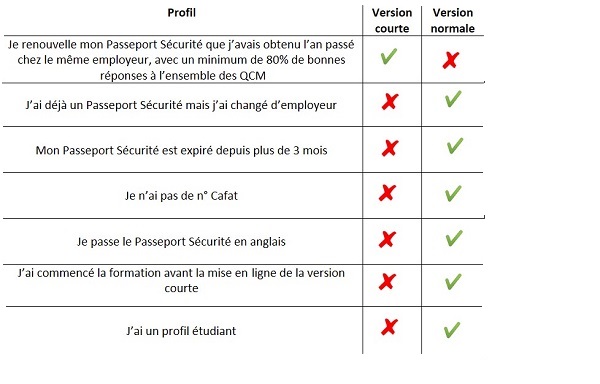
See at a glance the eligibility conditions for the short version: